> ## Documentation Index
> Fetch the complete documentation index at: https://docs-staging-feat-docs-5612-expanded-grant-support-ea.mintlify.site/llms.txt
> Use this file to discover all available pages before exploring further.

# Vault

> ActionsでVaultのフォームを使用する方法について説明します。

Vaultでは、シークレットや共通の設定（例：APIキー、アクセストークン、リフレッシュトークンなど）を安全に保存し、Vault接続として外部サービスや統合を使用した要求を認証できます。

<Callout icon="file-lines" color="#0EA5E9" iconType="regular">
  * 接続の中には、ユーザーに対して資格情報の提供を求めるものがあります（たとえば、Auth0でマシンツーマシン（M2M）アプリケーションを使う場合は、使用期限とリフレッシュトークンのあるアクセストークンを生成します）。接続は、両方のトークンを保管し、期限が切れる前に新しいアクセストークンを生成します。
  * 外部サービスによっては、API資格情報の生成にスコープの認可が必要です。スコープを変更した場合は、接続で問題が発生しないように、それらのサービスへの接続を更新してください。
  * 追加した接続は、すぐにフローで使用できます。既存の接続に対する更新は、自動的に反映されます。
</Callout>

## Vault接続を作成および変更する

アクションに資格情報が必要な場合、VaultページまたはフローエディターからVaultへの接続を作成・変更します。

### VaultページからVault接続を作成する

以下の手順に従って、VaultページからVault接続を追加します。

1. **［Auth0 Dashboard］>［Actions（アクション）］>［Forms（フォーム）］** の順に選択して、フォームエディターを開きます。

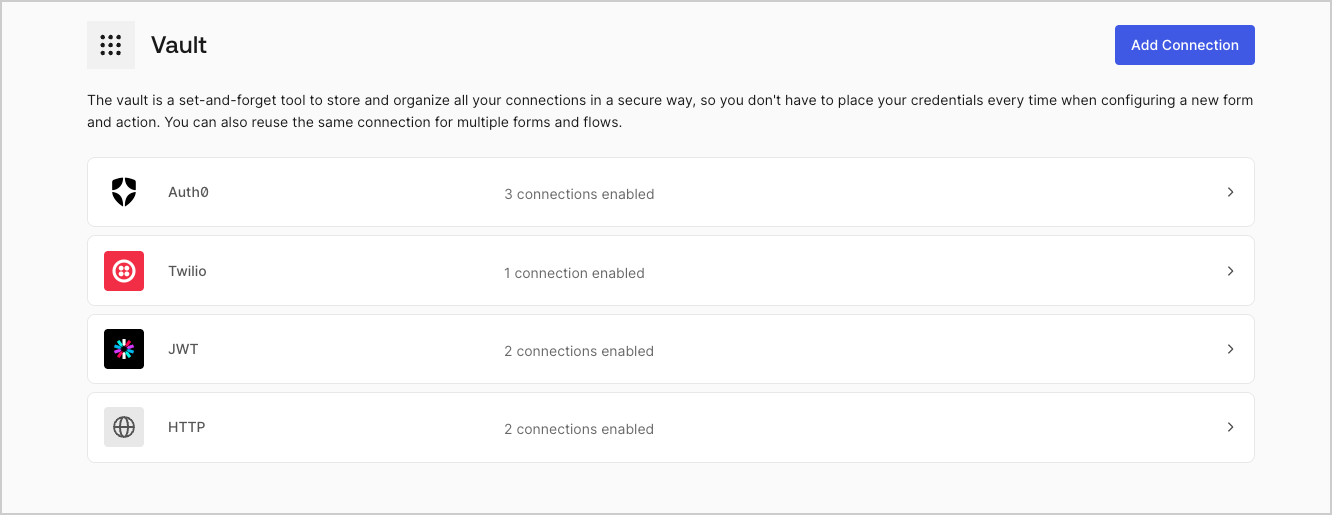
2. 左上隅の **{tenantName} >* \*\*\* ［Vault］*\* をクリックして、Vaultページを開きます。

   <Frame>
     <img src="https://mintcdn.com/docs-staging-feat-docs-5612-expanded-grant-support-ea/1Q48o7VfoefEtE-u/docs/images/ja-jp/cdy7uua7fh8z/1sPNPKO6nuEDCuiYGRWSur/d85dc616170eaf2d7d5f321750863ccf/vault-connections-example.png?fit=max&auto=format&n=1Q48o7VfoefEtE-u&q=85&s=e841430a26f0f19f787208852ecb0024" alt="Dashboard > Forms > Vault" data-og-width="1332" width="1332" data-og-height="515" height="515" data-path="docs/images/ja-jp/cdy7uua7fh8z/1sPNPKO6nuEDCuiYGRWSur/d85dc616170eaf2d7d5f321750863ccf/vault-connections-example.png" data-optimize="true" data-opv="3" srcset="https://mintcdn.com/docs-staging-feat-docs-5612-expanded-grant-support-ea/1Q48o7VfoefEtE-u/docs/images/ja-jp/cdy7uua7fh8z/1sPNPKO6nuEDCuiYGRWSur/d85dc616170eaf2d7d5f321750863ccf/vault-connections-example.png?w=280&fit=max&auto=format&n=1Q48o7VfoefEtE-u&q=85&s=b2ac145b284c0654c0ebdb16c86ed6ee 280w, https://mintcdn.com/docs-staging-feat-docs-5612-expanded-grant-support-ea/1Q48o7VfoefEtE-u/docs/images/ja-jp/cdy7uua7fh8z/1sPNPKO6nuEDCuiYGRWSur/d85dc616170eaf2d7d5f321750863ccf/vault-connections-example.png?w=560&fit=max&auto=format&n=1Q48o7VfoefEtE-u&q=85&s=9ca79094866dc268a9d6bfd6bb739d93 560w, https://mintcdn.com/docs-staging-feat-docs-5612-expanded-grant-support-ea/1Q48o7VfoefEtE-u/docs/images/ja-jp/cdy7uua7fh8z/1sPNPKO6nuEDCuiYGRWSur/d85dc616170eaf2d7d5f321750863ccf/vault-connections-example.png?w=840&fit=max&auto=format&n=1Q48o7VfoefEtE-u&q=85&s=97a7a045bf42a5af09859a74099cded8 840w, https://mintcdn.com/docs-staging-feat-docs-5612-expanded-grant-support-ea/1Q48o7VfoefEtE-u/docs/images/ja-jp/cdy7uua7fh8z/1sPNPKO6nuEDCuiYGRWSur/d85dc616170eaf2d7d5f321750863ccf/vault-connections-example.png?w=1100&fit=max&auto=format&n=1Q48o7VfoefEtE-u&q=85&s=1d662a0298510f9c7d4a1e9f19d7cf0b 1100w, https://mintcdn.com/docs-staging-feat-docs-5612-expanded-grant-support-ea/1Q48o7VfoefEtE-u/docs/images/ja-jp/cdy7uua7fh8z/1sPNPKO6nuEDCuiYGRWSur/d85dc616170eaf2d7d5f321750863ccf/vault-connections-example.png?w=1650&fit=max&auto=format&n=1Q48o7VfoefEtE-u&q=85&s=00d9b3f88d6f5d51597bc3b8e98f5380 1650w, https://mintcdn.com/docs-staging-feat-docs-5612-expanded-grant-support-ea/1Q48o7VfoefEtE-u/docs/images/ja-jp/cdy7uua7fh8z/1sPNPKO6nuEDCuiYGRWSur/d85dc616170eaf2d7d5f321750863ccf/vault-connections-example.png?w=2500&fit=max&auto=format&n=1Q48o7VfoefEtE-u&q=85&s=b4324612a8ef970b20b4c1768d5156fa 2500w" />
   </Frame>

3. **［Add Vault Connection（Vault接続を追加）］** を選択します。

4. 必要なアクションを選択し、 **［Continue（続行）］** をクリックします。

5. Vaultの **［Connection name（接続名）］** を追加し、 **［Continue（続行）］** を選択します。

6. 資格情報を入力します。特定の資格情報がない場合は、 **［Create an empty connection（空の接続を作成）］** を選択し、後で資格情報を追加することもできます。空の接続には、資格情報が不足していることを示すオレンジ色のアイコンが表示されます。
7. **［Add Vault Connection（Vault接続を追加）］** を選択します。

### フローエディターからVault接続を作成する

フローアクションから、たとえばTwilioのようなVault接続を追加するには、以下の手順を実行します。

1. **［Auth0 Dashboard］>［Actions（アクション）］>［Forms（フォーム）］>［Flows（フロー）］** の順に選択して、フローエディターを開きます。

2. フローを選択し、 **［Send SMS with Twillo（TwilloでSMSを送信］** アクションを追加します。

3. アクションの **［Vault connection（Vault接続）］** 設定で、 **+** アイコンを選択します。

   <Frame>
     <img src="https://mintcdn.com/docs-staging-feat-docs-5612-expanded-grant-support-ea/OXU-I0a_Gx2IrMmI/docs/images/ja-jp/cdy7uua7fh8z/1AsaznhRKxm5LZxPlcbfUw/10e5a8af700aab909f5b03fcd266da7e/twilio-vault-connection.png?fit=max&auto=format&n=OXU-I0a_Gx2IrMmI&q=85&s=a27fb272ce30be8427a0ffcc74939d66" alt="Dashboard > Forms > Vault " data-og-width="1104" width="1104" data-og-height="191" height="191" data-path="docs/images/ja-jp/cdy7uua7fh8z/1AsaznhRKxm5LZxPlcbfUw/10e5a8af700aab909f5b03fcd266da7e/twilio-vault-connection.png" data-optimize="true" data-opv="3" srcset="https://mintcdn.com/docs-staging-feat-docs-5612-expanded-grant-support-ea/OXU-I0a_Gx2IrMmI/docs/images/ja-jp/cdy7uua7fh8z/1AsaznhRKxm5LZxPlcbfUw/10e5a8af700aab909f5b03fcd266da7e/twilio-vault-connection.png?w=280&fit=max&auto=format&n=OXU-I0a_Gx2IrMmI&q=85&s=fa7567c9d55bbe36dc59e05ef3f7407a 280w, https://mintcdn.com/docs-staging-feat-docs-5612-expanded-grant-support-ea/OXU-I0a_Gx2IrMmI/docs/images/ja-jp/cdy7uua7fh8z/1AsaznhRKxm5LZxPlcbfUw/10e5a8af700aab909f5b03fcd266da7e/twilio-vault-connection.png?w=560&fit=max&auto=format&n=OXU-I0a_Gx2IrMmI&q=85&s=92d070e649ec6965075d87f900159073 560w, https://mintcdn.com/docs-staging-feat-docs-5612-expanded-grant-support-ea/OXU-I0a_Gx2IrMmI/docs/images/ja-jp/cdy7uua7fh8z/1AsaznhRKxm5LZxPlcbfUw/10e5a8af700aab909f5b03fcd266da7e/twilio-vault-connection.png?w=840&fit=max&auto=format&n=OXU-I0a_Gx2IrMmI&q=85&s=5bff3a379faca3a96d6b1628e1bfcce6 840w, https://mintcdn.com/docs-staging-feat-docs-5612-expanded-grant-support-ea/OXU-I0a_Gx2IrMmI/docs/images/ja-jp/cdy7uua7fh8z/1AsaznhRKxm5LZxPlcbfUw/10e5a8af700aab909f5b03fcd266da7e/twilio-vault-connection.png?w=1100&fit=max&auto=format&n=OXU-I0a_Gx2IrMmI&q=85&s=12bdbffc5f6ab444709e00507adaa672 1100w, https://mintcdn.com/docs-staging-feat-docs-5612-expanded-grant-support-ea/OXU-I0a_Gx2IrMmI/docs/images/ja-jp/cdy7uua7fh8z/1AsaznhRKxm5LZxPlcbfUw/10e5a8af700aab909f5b03fcd266da7e/twilio-vault-connection.png?w=1650&fit=max&auto=format&n=OXU-I0a_Gx2IrMmI&q=85&s=634a94073f3425c903721355ff4b4a68 1650w, https://mintcdn.com/docs-staging-feat-docs-5612-expanded-grant-support-ea/OXU-I0a_Gx2IrMmI/docs/images/ja-jp/cdy7uua7fh8z/1AsaznhRKxm5LZxPlcbfUw/10e5a8af700aab909f5b03fcd266da7e/twilio-vault-connection.png?w=2500&fit=max&auto=format&n=OXU-I0a_Gx2IrMmI&q=85&s=09bedc1c7d410b4e64c4f60540473d2c 2500w" />
   </Frame>

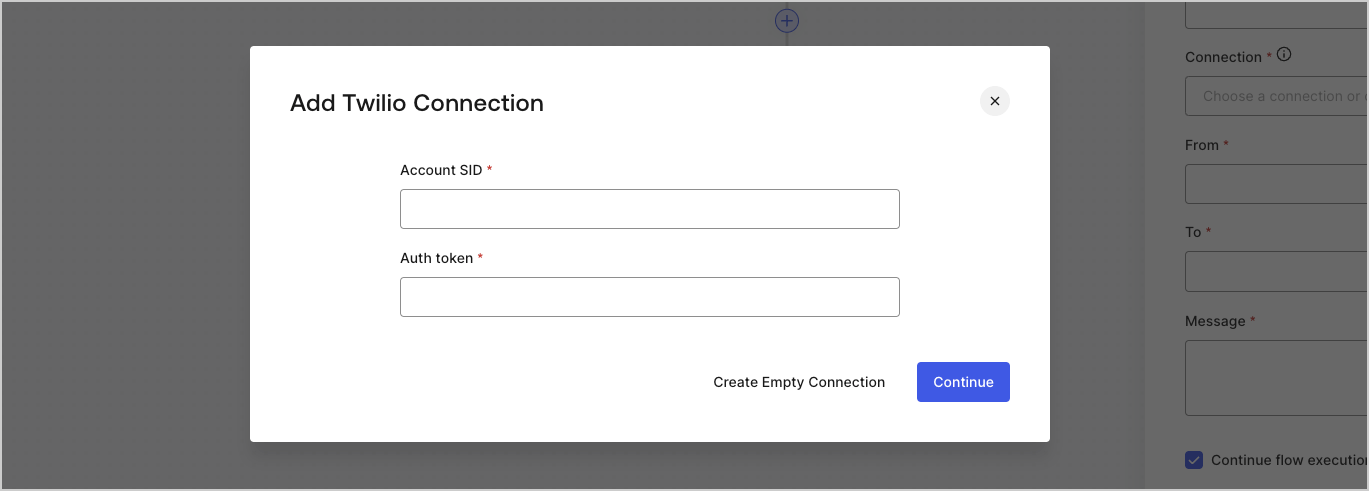
4. Vaultの **［Connection name（接続名）］** を追加し、 **［Continue（続行）］** を選択します。

5. 資格情報を入力します。特定の資格情報がない場合は、 **［Create an empty connection（空の接続を作成）］** を選択し、後で資格情報を追加することもできます。空の接続には、資格情報が不足していることを示すオレンジ色のアイコンが表示されます。

   <Frame>
     <img src="https://mintcdn.com/docs-staging-feat-docs-5612-expanded-grant-support-ea/tVfg_MI8K41OJw6A/docs/images/ja-jp/cdy7uua7fh8z/yobXanutPRCO3FWek8cOk/bc29e39fb8593cff35e2738234bfe6fe/twilio-vault-settings.png?fit=max&auto=format&n=tVfg_MI8K41OJw6A&q=85&s=7944b92e3b1420f106ede2214043b76b" alt="Dashboard > Forms > Vault > Twilio connection settings" data-og-width="1369" width="1369" data-og-height="491" height="491" data-path="docs/images/ja-jp/cdy7uua7fh8z/yobXanutPRCO3FWek8cOk/bc29e39fb8593cff35e2738234bfe6fe/twilio-vault-settings.png" data-optimize="true" data-opv="3" srcset="https://mintcdn.com/docs-staging-feat-docs-5612-expanded-grant-support-ea/tVfg_MI8K41OJw6A/docs/images/ja-jp/cdy7uua7fh8z/yobXanutPRCO3FWek8cOk/bc29e39fb8593cff35e2738234bfe6fe/twilio-vault-settings.png?w=280&fit=max&auto=format&n=tVfg_MI8K41OJw6A&q=85&s=a28781bfdf6fbd03d3ba512b20cc3849 280w, https://mintcdn.com/docs-staging-feat-docs-5612-expanded-grant-support-ea/tVfg_MI8K41OJw6A/docs/images/ja-jp/cdy7uua7fh8z/yobXanutPRCO3FWek8cOk/bc29e39fb8593cff35e2738234bfe6fe/twilio-vault-settings.png?w=560&fit=max&auto=format&n=tVfg_MI8K41OJw6A&q=85&s=38bb90de472393f4398f63bd0bbb8991 560w, https://mintcdn.com/docs-staging-feat-docs-5612-expanded-grant-support-ea/tVfg_MI8K41OJw6A/docs/images/ja-jp/cdy7uua7fh8z/yobXanutPRCO3FWek8cOk/bc29e39fb8593cff35e2738234bfe6fe/twilio-vault-settings.png?w=840&fit=max&auto=format&n=tVfg_MI8K41OJw6A&q=85&s=ad25e1562a709eda374306b0f5a0d577 840w, https://mintcdn.com/docs-staging-feat-docs-5612-expanded-grant-support-ea/tVfg_MI8K41OJw6A/docs/images/ja-jp/cdy7uua7fh8z/yobXanutPRCO3FWek8cOk/bc29e39fb8593cff35e2738234bfe6fe/twilio-vault-settings.png?w=1100&fit=max&auto=format&n=tVfg_MI8K41OJw6A&q=85&s=d01bf1fb4e3494da05ed3b3ec0e69647 1100w, https://mintcdn.com/docs-staging-feat-docs-5612-expanded-grant-support-ea/tVfg_MI8K41OJw6A/docs/images/ja-jp/cdy7uua7fh8z/yobXanutPRCO3FWek8cOk/bc29e39fb8593cff35e2738234bfe6fe/twilio-vault-settings.png?w=1650&fit=max&auto=format&n=tVfg_MI8K41OJw6A&q=85&s=c808e8089eb058ac74de3cc7b4d02873 1650w, https://mintcdn.com/docs-staging-feat-docs-5612-expanded-grant-support-ea/tVfg_MI8K41OJw6A/docs/images/ja-jp/cdy7uua7fh8z/yobXanutPRCO3FWek8cOk/bc29e39fb8593cff35e2738234bfe6fe/twilio-vault-settings.png?w=2500&fit=max&auto=format&n=tVfg_MI8K41OJw6A&q=85&s=fb645ee4c55a5f470d1dfa9faecb8051 2500w" />
   </Frame>

6. **［Add Vault Connection（Vault接続を追加）］** を選択します。